
What Is an Operating System? A Complete Beginner’s Guide
If you have ever used a computer, laptop, smartphone, tablet, or smart device, you have already interacted with an operating system (OS). But what exactly is an operating system, and why is it so important?
An operating system is one of the most essential types of system software on any modern computing device. It manages hardware, runs applications, controls system resources, handles files, provides security, and allows users to interact with their devices.
Without an operating system, using a computer would be extremely difficult because applications would have to communicate directly with hardware components such as the processor, memory, storage drive, keyboard, display, and network devices.
In this complete beginner’s guide, we will explain what an operating system is, how an operating system works, different types of operating systems, common operating system examples, important OS functions, operating system components, and useful OS tools.
Whether you are a student, beginner, computer user, or technology enthusiast, this guide will help you understand the basics of operating systems.
What Is an Operating System?
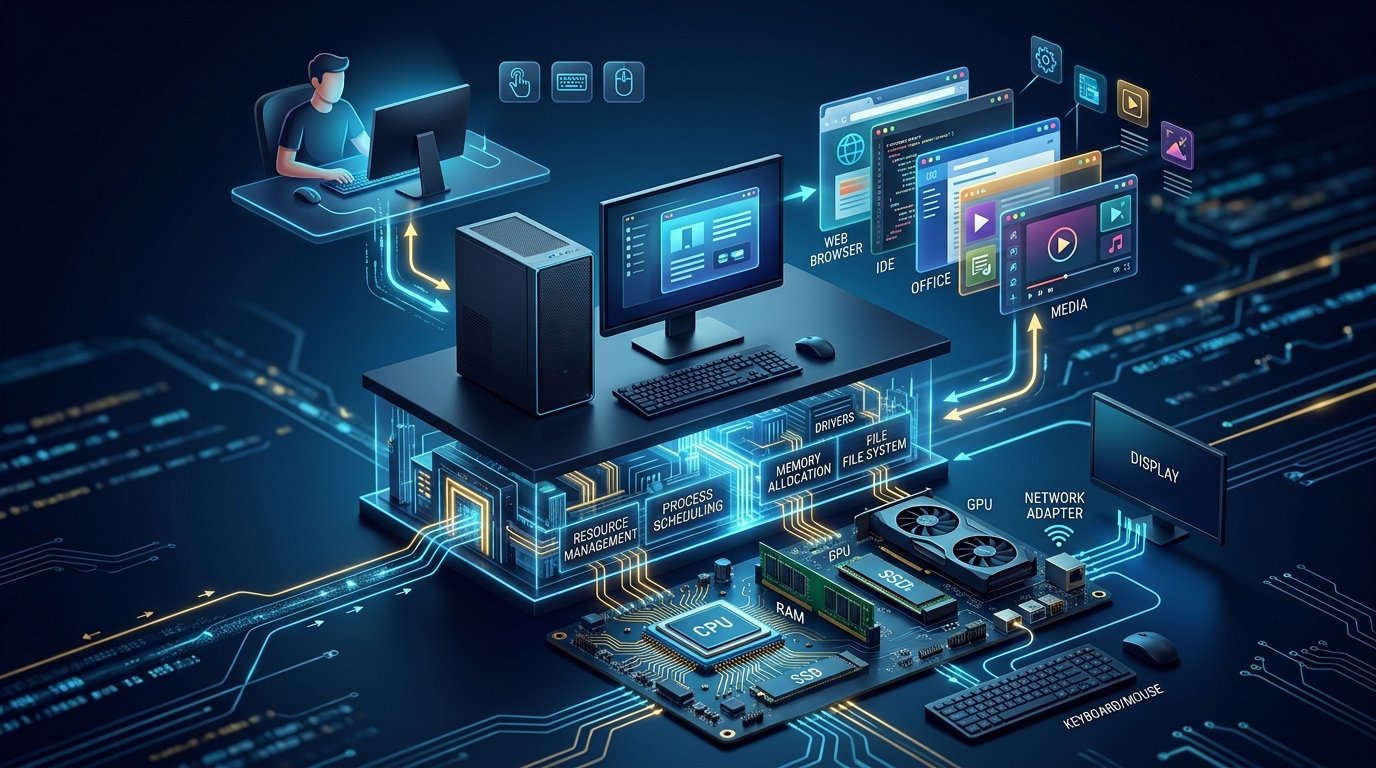
An operating system, commonly called an OS, is system software that manages the hardware and software resources of a computing device.
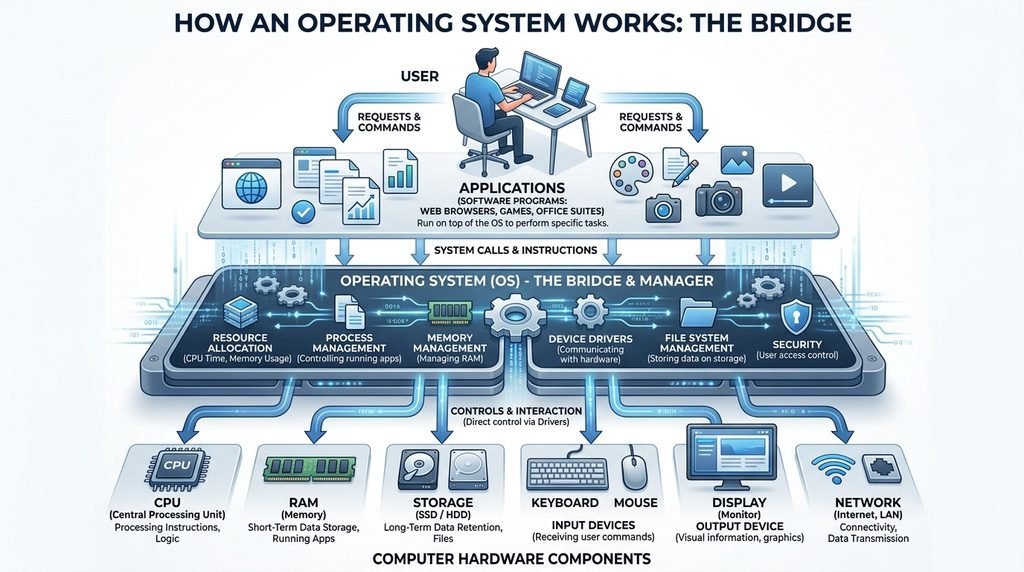
In simple words, the operating system acts as a bridge between the user, applications, and computer hardware.
For example, when you open a web browser, the browser needs processor power, RAM, storage access, network connectivity, and other resources. The operating system manages these resources and allows the browser to work properly.
Popular operating systems include:
- Microsoft Windows
- Apple macOS
- Linux
- Android
- Apple iOS
- ChromeOS
- Unix
An operating system is usually loaded when a device starts. This process is known as booting.
Once the operating system is running, it manages different activities in the background while allowing users to open applications, create files, browse the internet, connect devices, and perform other tasks.
Why Is an Operating System Important?
An operating system is important because it makes computer hardware usable.
A computer contains many physical components, but hardware alone cannot provide a convenient environment for users and applications. The operating system coordinates these components.
For example, when you click a file, the OS determines where that file is stored and sends the appropriate instructions to the storage device.
When you play a video, the operating system helps applications access the CPU, RAM, graphics hardware, speakers, and display.
When you connect a USB device, the operating system detects the device and loads the appropriate driver when available.
Therefore, an OS performs many important tasks without requiring users to understand the technical details of hardware communication.
Main Functions of an Operating System
An operating system performs many functions. Some of the most important functions of an operating system are explained below.
1. Process Management
Process management is one of the major responsibilities of an OS.
A process is a program or application that is currently running. When you open a browser, media player, text editor, or game, the operating system manages the processes associated with those applications.
The OS determines:
- Which process receives CPU time
- How processes are scheduled
- How processes interact
- How system resources are allocated
- What happens when a process stops responding
Modern operating systems can manage many processes simultaneously.
This is why you can listen to music while browsing the internet, downloading a file, and working on a document.
2. Memory Management
Another important function of an operating system is memory management.
RAM provides temporary working space for applications and processes. The OS keeps track of which parts of memory are being used and allocates memory to applications when required.
For example, if you open several applications simultaneously, the operating system manages RAM allocation between them.
If physical memory becomes limited, modern operating systems may also use storage as part of virtual memory management.
Efficient memory management helps maintain system stability and performance.
3. File Management
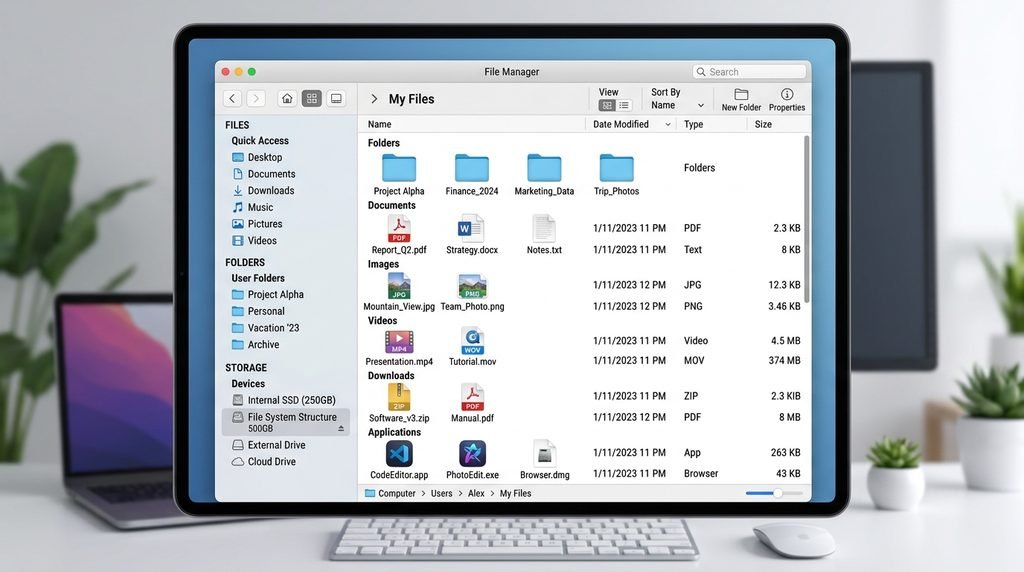
Operating systems provide systems for creating, organizing, accessing, modifying, and deleting files.
A file system determines how information is organized on a storage device.
Common file systems include:
- NTFS
- FAT32
- exFAT
- ext4
- APFS
File management allows users to create folders, rename files, copy information, move files, and manage storage.
For most users, file management happens through graphical applications such as File Explorer or Finder.
4. Device Management
Computers use many hardware devices, including:
- Keyboard
- Mouse
- Printer
- Webcam
- Microphone
- Monitor
- USB devices
- Network adapters
- Graphics cards
- Storage devices
The operating system helps applications communicate with these devices.
Device drivers play an important role in this process.
A device driver is software that allows an operating system to communicate with a particular hardware device.
For example, a printer driver helps the OS and applications communicate with a printer.
5. Security and User Management
Modern operating systems include several security mechanisms.
An OS can manage:
- User accounts
- Passwords
- Permissions
- Application access
- File permissions
- Security policies
- System updates
- Network settings
User permissions are especially important on computers shared by multiple people.
For example, an administrator account may have permission to install software or modify important system settings, while a standard user account may have fewer privileges.
Operating system security also helps protect system files and resources from unauthorized access.
6. User Interface
An operating system provides a way for users to interact with the computer.
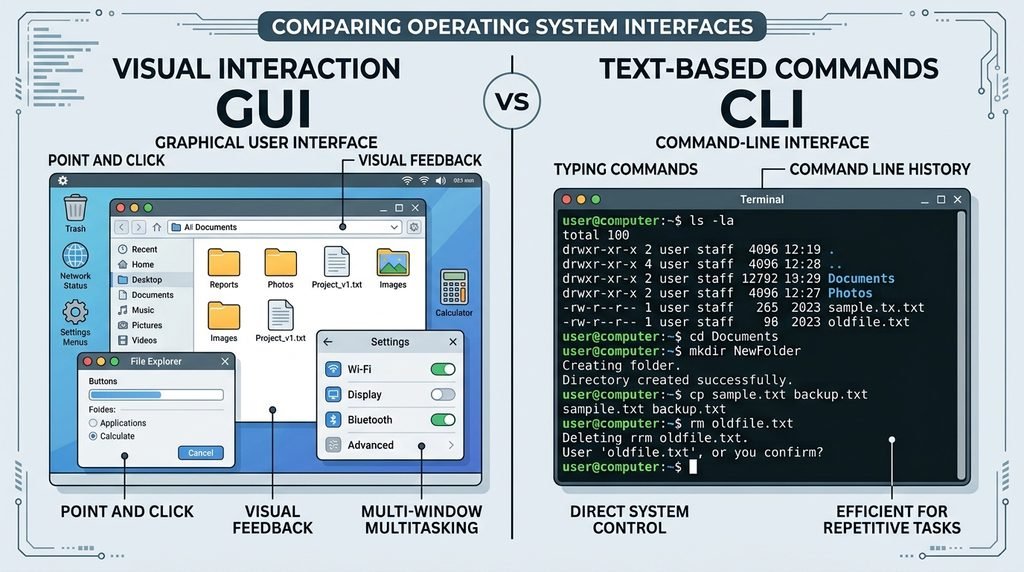
There are two major types of user interfaces commonly associated with operating systems:
Graphical User Interface
A Graphical User Interface (GUI) allows users to interact with windows, icons, menus, buttons, and visual controls.
Windows, macOS, and many Linux desktop environments provide graphical interfaces.
Command-Line Interface
A Command-Line Interface (CLI) allows users to interact with the operating system by entering commands.
Examples include:
- Windows Command Prompt
- Windows PowerShell
- Linux Terminal
- macOS Terminal
Command-line tools can be extremely useful for system administration, troubleshooting, automation, and advanced computer management.
7. Network Management
Modern devices rely heavily on internet and network connections.
An operating system manages networking functions such as:
- Wi-Fi connections
- Ethernet connections
- Network adapters
- IP configuration
- DNS settings
- Network permissions
- Data communication
When you connect your laptop to Wi-Fi, the operating system helps establish and manage that connection.
Network tools built into operating systems can also help users diagnose connectivity problems.
8. Resource Management
A computer has limited resources such as CPU processing power, RAM, storage space, and network bandwidth.
The OS coordinates these resources among applications and processes.
This is known as resource management.
For example, if several applications are running simultaneously, the OS decides how processor time and memory are allocated.
Efficient resource management helps prevent one application from unnecessarily taking all available system resources.
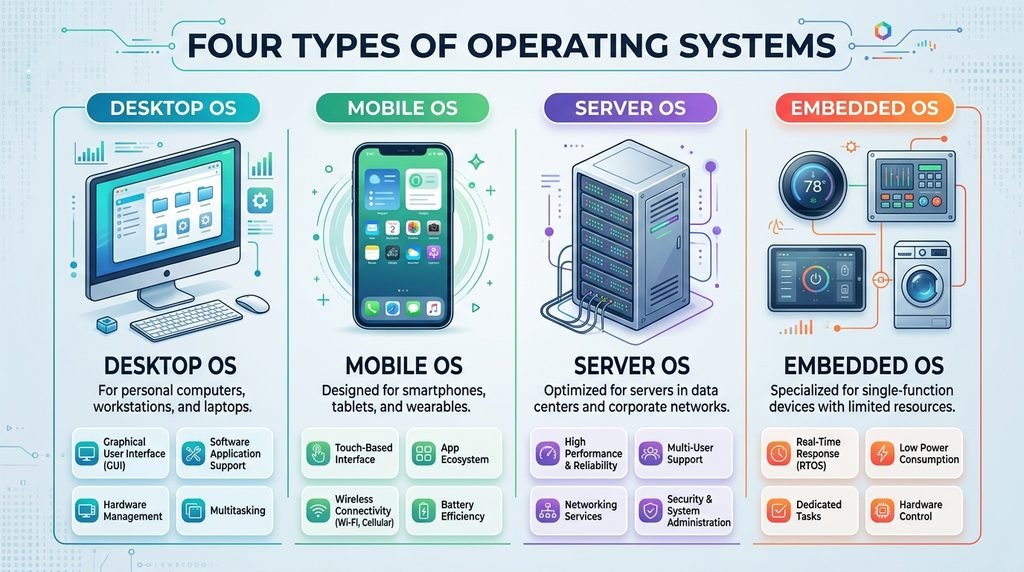
Types of Operating Systems
There are several ways to categorize operating systems.
Different operating systems are designed for different types of devices and workloads.
1. Desktop Operating Systems
Desktop operating systems are designed for personal computers and workstations.
Popular examples include:
- Microsoft Windows
- macOS
- Linux distributions
- ChromeOS
These operating systems generally provide graphical interfaces and support a large range of applications.
2. Mobile Operating Systems
Mobile operating systems are designed for smartphones and tablets.
Major examples include:
- Android
- iOS
Mobile operating systems are optimized for touchscreens, battery efficiency, mobile networks, sensors, cameras, and application ecosystems.
3. Server Operating Systems
Server operating systems are designed to manage servers and provide services to other computers and devices.
Examples include various Linux server distributions and Windows Server.
Server operating systems are commonly used for:
- Web hosting
- Database servers
- File servers
- Network services
- Cloud infrastructure
- Enterprise applications
4. Embedded Operating Systems
Embedded operating systems are designed for specialized devices.
They can be found in:
- Smart appliances
- Industrial equipment
- Automotive systems
- Routers
- Smart TVs
- IoT devices
Unlike desktop operating systems, embedded systems are often designed for a specific purpose.
Examples of Operating Systems
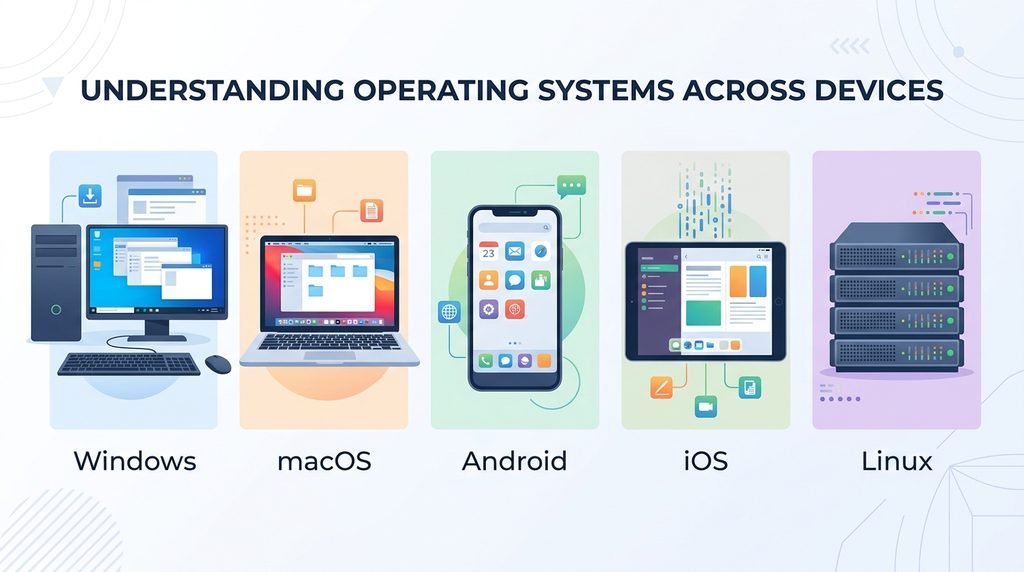
There are many operating systems available today.
Microsoft Windows
Microsoft Windows is one of the most widely used desktop operating systems.
It is commonly used for:
- Personal computers
- Business computers
- Gaming PCs
- Educational institutions
- Professional workstations
Windows provides a graphical interface and supports a large software ecosystem.
Linux
Linux is an important operating system family widely used in servers, development environments, cloud computing, networking, embedded devices, and desktop computers.
Linux distributions include different combinations of the Linux kernel, system utilities, software packages, and desktop environments.
Examples include Ubuntu, Fedora, Debian, and Arch Linux.
Linux is particularly popular among developers, system administrators, and technology enthusiasts.
macOS
macOS is Apple’s desktop operating system for Mac computers.
It provides an integrated environment for applications, file management, hardware management, security, and other computing tasks.
Android
Android is a mobile operating system used across a wide range of smartphones, tablets, televisions, automotive systems, and other devices.
Its application ecosystem and hardware flexibility have made it a major mobile operating system.
iOS
iOS is Apple’s mobile operating system used on iPhone devices.
It provides system management, application support, security features, connectivity, and a touch-based user interface.
What Is System Software?
An operating system is a type of system software.
System software helps manage and operate computer hardware.
It is different from application software.
System Software
Examples include:
- Operating systems
- Device drivers
- System utilities
- Firmware
Application Software
Examples include:
- Web browsers
- Word processors
- Video players
- Image editors
- Games
- Communication applications
The operating system provides the environment in which many application programs operate.
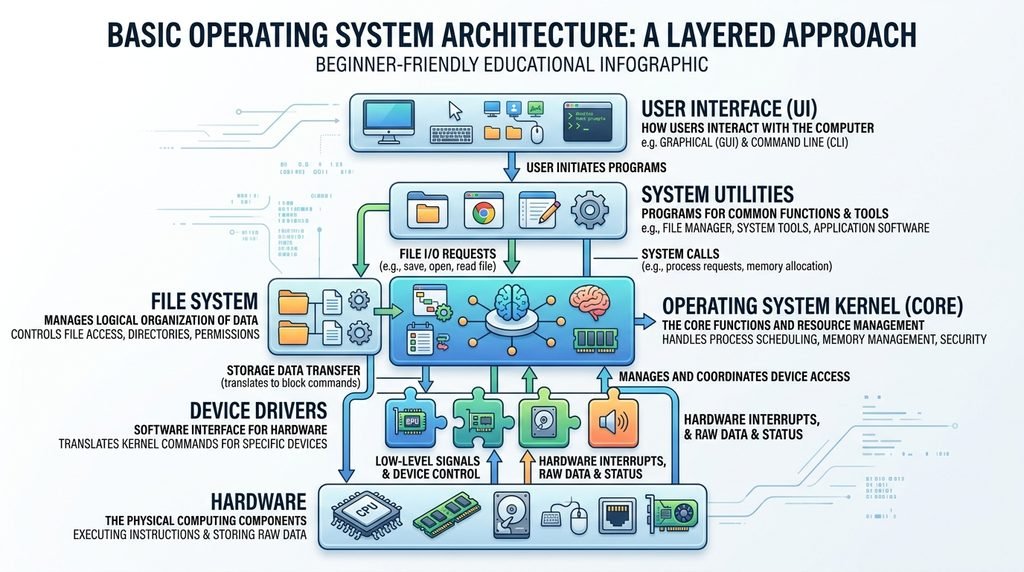
Operating System Components
An operating system contains several important components.
Kernel
The kernel is one of the most important parts of an operating system.
It manages communication between software and hardware and handles critical tasks such as process management, memory management, and hardware interaction.
Device Drivers
Device drivers allow the operating system to communicate with hardware devices.
File System
The file system organizes data stored on storage devices.
User Interface
The user interface allows people to interact with the operating system.
System Utilities
System utilities help users manage, monitor, configure, and troubleshoot the computer.
What Are Operating System Tools?
Operating system tools are utilities that help users manage, monitor, configure, maintain, and troubleshoot a computer.
Many OS tools are already included with the operating system.
Examples include:
- Task Manager
- File Explorer
- Disk Management
- Device Manager
- Command Prompt
- PowerShell
- System Information
- Event Viewer
- Resource Monitor
- Terminal
These tools can be useful when diagnosing performance problems or managing system resources.
Important Windows OS Tools
Windows includes many built-in tools that can help users understand and manage their computers.
Task Manager
Task Manager displays information about running applications, processes, CPU usage, memory usage, disk activity, and other system resources.
It can also be used to identify applications that are consuming excessive resources.
Device Manager
Device Manager displays hardware devices installed on a Windows computer.
It can help users identify driver and hardware-related problems.
Disk Management
Disk Management allows users to view and manage storage volumes and partitions.
System Information
System Information provides detailed information about hardware resources, system components, and the Windows environment.
Event Viewer
Event Viewer displays system and application event logs that can be useful for troubleshooting.
[Image Placeholder 7 — Insert Windows OS Tools Image Here]
Image Prompt:
“Create an educational infographic showing common operating system tools on a desktop computer: Task Manager, Device Manager, Disk Management, System Information, Event Viewer and Command Prompt. Use generic interface windows without copying any real software interface exactly. Professional technology blog style, 16:9.”
Linux Operating System Tools
Linux systems provide a wide range of command-line and graphical tools.
Some common command-line utilities include:
- ls
- cd
- cp
- mv
- rm
- df
- du
- ps
- top
- ping
These tools can be used for file management, process monitoring, storage analysis, networking, and system administration.
Linux also provides graphical system monitoring and configuration applications depending on the distribution and desktop environment.
For beginners, learning basic Linux commands can be a valuable way to understand how an operating system works.
How Does an Operating System Start?
When you turn on a computer, several steps happen before you see the desktop.
The general startup process looks like this:
Power On → Firmware Initialization → Bootloader → Operating System Kernel → System Services → Login/Desktop
The firmware performs initial hardware checks and identifies how the system should start.
The bootloader then helps load the operating system.
The OS kernel is loaded into memory, followed by important system services.
Finally, the user receives a login screen or desktop environment.
[Image Placeholder 8 — Insert OS Boot Process Image Here]
Image Prompt:
“Create a clean educational flowchart explaining the computer operating system boot process: Power On, Firmware Initialization, Bootloader, Kernel Loading, System Services, Login Screen and Desktop. Use arrows between each stage. Modern computer science infographic, professional technology website style, 16:9, simple readable labels.”
Operating System vs Application Software
Many beginners confuse an operating system with applications.
The difference is simple.
An operating system manages the computer and provides a platform for applications.
An application performs a specific task for the user.
For example:
| Operating System | Application |
|---|---|
| Windows | Web browser |
| Linux | Text editor |
| macOS | Video editor |
| Android | Messaging app |
| iOS | Photo editor |
The application typically depends on the operating system for access to hardware and system services.
What Happens If a Computer Has No Operating System?
A computer can technically power on without a conventional operating system, but it cannot provide the normal environment required by modern applications.
Without an OS, users would not have the familiar desktop environment, file management system, application platform, user accounts, or many standard hardware-management services.
This is why operating systems are fundamental to general-purpose computing.
Specialized devices can use firmware or highly specialized software instead of a traditional desktop operating system, but they still require software to control their hardware.
How to Choose an Operating System
Choosing the best operating system depends on your requirements.
Before selecting an OS, consider:
Hardware Compatibility
Check whether your computer or device supports the operating system.
Software Requirements
Some applications are designed specifically for particular operating systems.
Security
Consider the security features, update policies, and software ecosystem of the OS.
Performance
Older hardware may perform better with a lightweight operating system.
Ease of Use
Beginners may prefer an operating system with an interface they find easy to understand.
Customization
Some operating systems provide more customization options than others.
Technical Support
Consider the availability of documentation, community support, and professional support.
[Image Placeholder 9 — Insert Choosing an OS Image Here]
Image Prompt:
“Create a professional decision-tree infographic titled ‘How to Choose an Operating System?’ showing factors including Hardware Compatibility, Software Support, Security, Performance, Ease of Use, Customization and Technical Support. Modern technology design, clean layout, 16:9, no company logos.”
How to Keep Your Operating System Safe
Operating system security is an important part of computer maintenance.
Here are some general security practices:
Keep the OS Updated
Install legitimate operating system updates and security patches when they become available.
Use Strong Account Security
Use strong passwords and additional authentication features when available.
Install Trusted Software
Download applications from reputable sources and avoid suspicious software.
Use Security Software
Use appropriate security and malware protection tools for your operating system.
Back Up Important Files
Regular backups can help protect important data from hardware failure, accidental deletion, or other problems.
Be Careful With Downloads
Avoid opening suspicious attachments or downloading unknown programs.
How to Improve Operating System Performance
If your computer feels slow, several basic steps may help.
1. Restart the Computer
A restart can clear temporary states and resolve some software problems.
2. Check Resource Usage
Use system monitoring tools to identify applications consuming excessive CPU or RAM.
3. Remove Unnecessary Applications
Uninstall software that you no longer need.
4. Manage Startup Applications
Too many startup applications can increase boot time and consume system resources.
5. Keep Software Updated
Updates can include performance improvements and bug fixes.
6. Maintain Adequate Storage Space
A storage drive that is nearly full can make system maintenance more difficult.
7. Check for Malware
Security tools can help identify potentially harmful software.
Operating System and Cloud Computing
Operating systems are also important in cloud computing.
Cloud servers need operating systems to manage computing resources and run services.
Linux is particularly common in server and cloud environments, although other operating systems are also used.
Cloud operating environments may run:
- Websites
- Databases
- APIs
- Virtual machines
- Containers
- Storage services
- Business applications
The OS remains an important layer between computing hardware or virtualized infrastructure and the software services running on top.
Operating Systems and Virtual Machines
A virtual machine is a software-based computer environment that runs inside another computing environment.
Virtualization allows one physical computer to run multiple operating systems under suitable configurations.
For example, a computer could run one operating system as the host while running another operating system inside a virtual machine.
Virtual machines are useful for:
- Software testing
- Development
- Education
- Server consolidation
- Security research
- Compatibility testing
[Image Placeholder 10 — Optional Extra Image]
Image Prompt:
“Create a professional educational diagram showing virtualization. A physical computer with CPU, RAM and storage runs a host operating system, which contains two generic virtual machines running different operating systems. Clearly label Hardware, Host OS, Virtual Machine 1 and Virtual Machine 2. Clean modern cloud computing illustration, 16:9, no logos.”
Operating System Troubleshooting
Operating system problems can happen for many reasons.
Common issues include:
- Slow performance
- Application crashes
- Driver problems
- Storage errors
- Network connectivity issues
- Startup problems
- Missing files
- Software conflicts
- Update failures
The first step in troubleshooting should be identifying the symptoms.
For example, if the entire computer is slow, checking CPU and memory usage may provide useful information.
If a specific hardware device is not working, checking drivers and device status may be helpful.
If an application repeatedly crashes, checking application updates, system logs, and compatibility can provide clues.
A systematic troubleshooting approach is usually better than randomly changing system settings.
Why Learning About Operating Systems Matters
Understanding operating systems is useful even if you are not a professional IT specialist.
Basic OS knowledge can help you:
- Troubleshoot common computer problems
- Manage files
- Understand computer performance
- Protect your data
- Install and manage applications
- Use system tools
- Understand hardware resources
- Improve digital skills
For students and aspiring technology professionals, operating system concepts are even more important because OS knowledge is connected to networking, cybersecurity, programming, cloud computing, and system administration.
Frequently Asked Questions About Operating Systems
What is an operating system in simple words?
An operating system is software that manages a computer’s hardware and provides an environment where applications can run.
What are the main functions of an operating system?
The main functions include process management, memory management, file management, device management, security, networking, resource management, and providing a user interface.
What are the most common operating systems?
Common operating systems include Windows, Linux, macOS, Android, iOS, and ChromeOS.
Is an operating system software?
Yes. An operating system is a type of system software.
What is the difference between an OS and an application?
The operating system manages system resources and provides services to applications, while an application performs a specific task for the user.
What is a kernel?
The kernel is a core part of an operating system responsible for important tasks such as managing hardware resources, processes, and memory.
What are OS tools?
OS tools are utilities used to monitor, configure, maintain, and troubleshoot an operating system.
Can a computer work without an operating system?
A computer can start and execute specialized software without a conventional desktop OS, but general-purpose computers normally require an operating system to provide the environment needed for applications and everyday use.
Which operating system is best?
There is no single best operating system for everyone. The right choice depends on hardware, applications, security requirements, performance needs, technical experience, and personal preferences.
Final Thoughts
An operating system is one of the most important pieces of software on a modern computing device. It connects users and applications with hardware while managing resources such as CPU, RAM, storage, networking, and connected devices.
From Windows and Linux to macOS, Android, and iOS, different operating systems are designed for different environments and requirements.
Understanding the basics of an OS can make it easier to troubleshoot computers, use system utilities, improve security, manage files, and understand how modern technology works.
For beginners, the best approach is to start with fundamental concepts such as operating system functions, OS components, file management, process management, memory management, system security, and operating system tools.
As your knowledge grows, you can explore more advanced topics such as Linux administration, command-line tools, virtualization, cloud computing, networking, cybersecurity, and system performance optimization.
In short, whenever you use a computer or smart device, the operating system is working behind the scenes to make that experience possible.
Keep exploring technology with SysTechora to learn more about operating systems, system tools, computer utilities, troubleshooting, and modern technology.
SEO Keywords Used Naturally in This Article
Primary keyword:
- What Is an Operating System
Secondary keywords:
- operating system
- OS
- operating system definition
- operating system functions
- functions of operating system
- types of operating systems
- operating system examples
- computer operating system
- system software
- Windows OS
- Linux OS
- macOS
- Android operating system
- iOS
- operating system tools
- OS tools
- system utilities
- operating system components
- kernel
- file management
- memory management
- process management
- device management
- operating system security
- system software examples
- computer system
- operating system troubleshooting
- operating system performance
- Linux tools
- Windows tools
Suggested SEO Meta Title
What Is an Operating System? Complete Beginner’s Guide
Suggested Meta Description
Learn what an operating system is, how it works, its main functions, types, examples, OS tools, components, security, and troubleshooting in this complete beginner’s guide.
Suggested URL Slug
/what-is-an-operating-system/
Suggested Image Alt Texts
- What is an operating system overview
- Operating system file management
- GUI vs CLI operating system
- Types of operating systems
- Operating system examples
- Operating system components
- Windows operating system tools
- Operating system boot process
- How to choose an operating system
- Virtual machine operating systems